If you work with raw recordings, field recordings, dialogue, or sound effects, one of the biggest time drains is hunting through audio just to find where speech happens. That gets even worse when you have hours of material and only need to catch the bits with talking, announcers, or your own slates.
That is where ReaSpeech Lite has been surprisingly helpful. It is a Reaper tool that analyzes audio locally on your computer, finds speech, transcribes it, and lets you export that information. It is not perfect, but it can absolutely speed up the boring parts of editing.
I have mainly been using it in two ways:
- Scanning field recordings to quickly find unwanted voices
- Turning spoken slates into metadata so those notes stay attached to the file
What ReaSpeech Lite actually does
Inside Reaper, ReaSpeech Lite processes the audio on a track and looks for voice content. Once it finds speech, it can create text from it and export that information as a CSV.
That opens up a few practical uses:
- Locating sections with dialogue or background speech
- Jumping through large recordings faster
- Pulling spoken slate notes into text
- Embedding those notes into your file metadata
For sound designers, dialogue editors, and audio editors, that can remove a lot of repetitive listening just to find obvious problem areas.
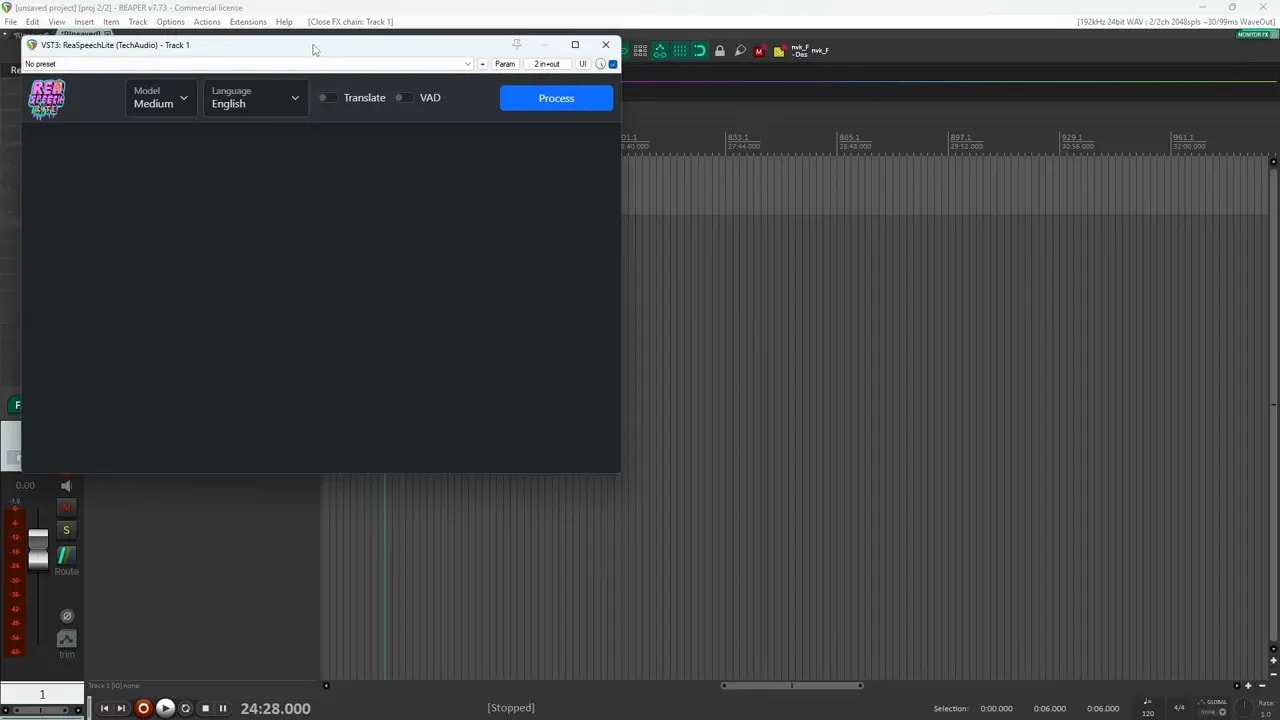
How to install ReaSpeech Lite
The first important thing is to make sure you are downloading ReaSpeech Lite, not the full ReaSpeech version.
The general process is pretty simple:
- Go to the Tech Audio page for ReaSpeech Lite
- Choose the version that matches your system
- Install it and restart Reaper
- Load it from your FX list inside Reaper
If you want a faster setup and already have an NVIDIA graphics card, the recommended route is the CUDA version. The big advantage there is processing speed.
Why the CUDA version matters
The plugin documentation recommends using the CUDA version because it processes much faster. If your system supports it, that is probably the best option.
The rough workflow looks like this:
- Install the CUDA toolkit first
- Download the matching CUDA build of ReaSpeech Lite
- Complete the plugin install
- Restart Reaper and load the plugin
On Windows, that means grabbing the Windows CUDA 13 version if you installed the matching toolkit.
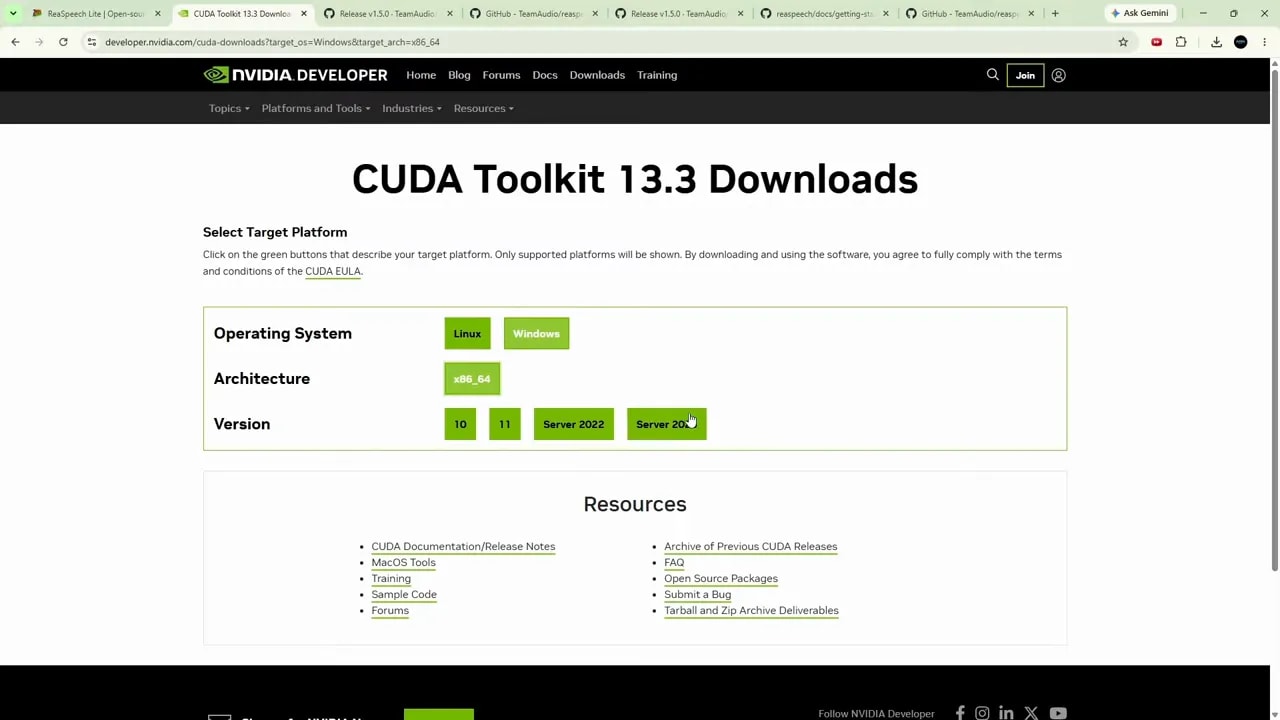
Depending on your setup, you may also need to place a DLL file in the correct folder. The exact steps can vary a bit, so it is worth following the install instructions carefully.
Once everything is working, it is a good idea to save a preset in Reaper with your preferred model and language already selected.
Useful settings to know before processing
ReaSpeech Lite gives you a few options that affect how it behaves.
- Model: affects speed and possibly how useful the results feel
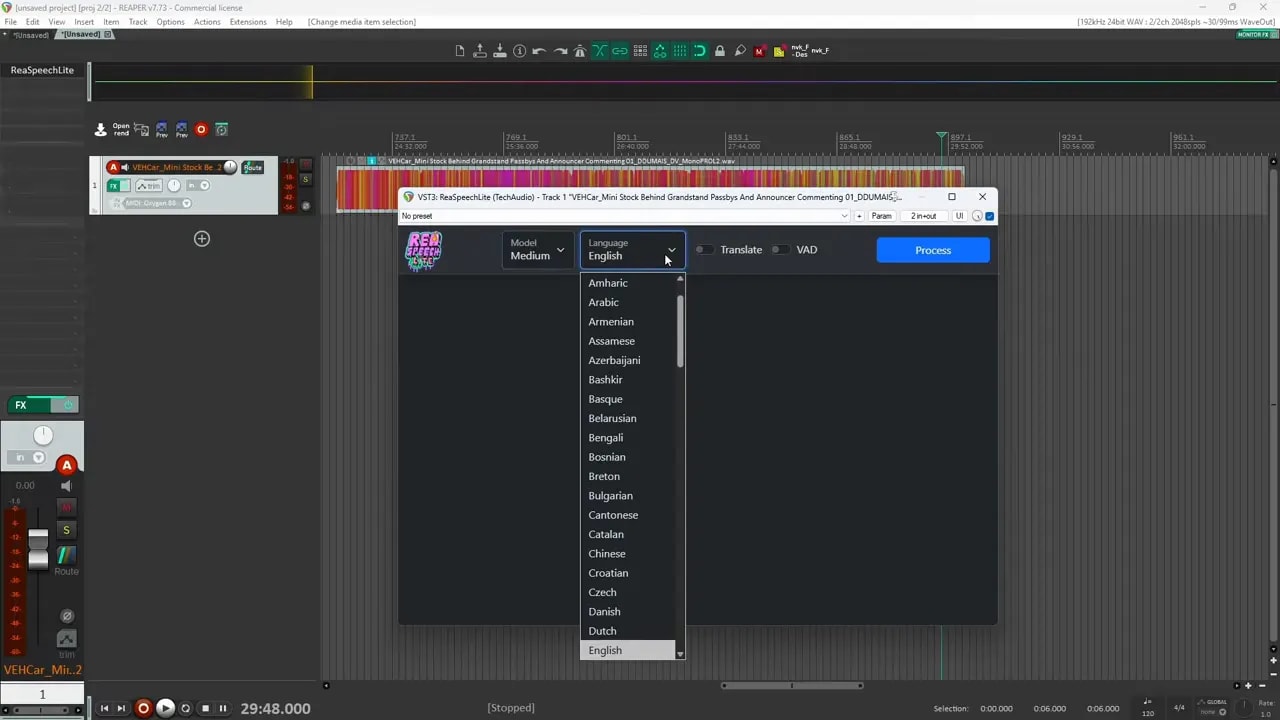
- Language: choose the language in your recording
- Translate: available, though not something I have been relying on here
- VAD: voice activity detection
I have had decent results using the small, medium, and large models. Medium has been a nice middle ground for speed and usefulness.
One thing to know about voice activity detection is that it does not always help. Sometimes turning it on gives nothing. Turning it off and processing again can suddenly reveal a lot more hits. So if you get weak results, try reprocessing with a different model or with VAD changed.
Use case 1: Filtering field recordings faster
This is where the tool saved me the most time.
I had a large batch of race track recordings with all kinds of unwanted voice content in them:
- Announcers over loudspeakers
- People talking nearby
- My own spoken notes during recording
Normally, cleaning that up means listening through hours of audio and manually hunting for those moments. When you have a big batch of recordings, that becomes a serious time sink.
With ReaSpeech Lite, I can process a file and get a list of spots where it believes speech is happening. The text labels are not always accurate, but that is not the point. What matters is that it points me to the right part of the file.
So even if the plugin guesses the wrong words, it still often identifies the right region. That is enough to speed up editing.
Why imperfect transcription is still useful
For field recording cleanup, I do not need perfect captions. I just need fast markers that say, “Check here, there is probably talking.”
That means the tool is useful even when:
- The wording is off
- The description is vague
- It mislabels what is being said
If it helps me jump to the sections with voices, it has already done the hard part.
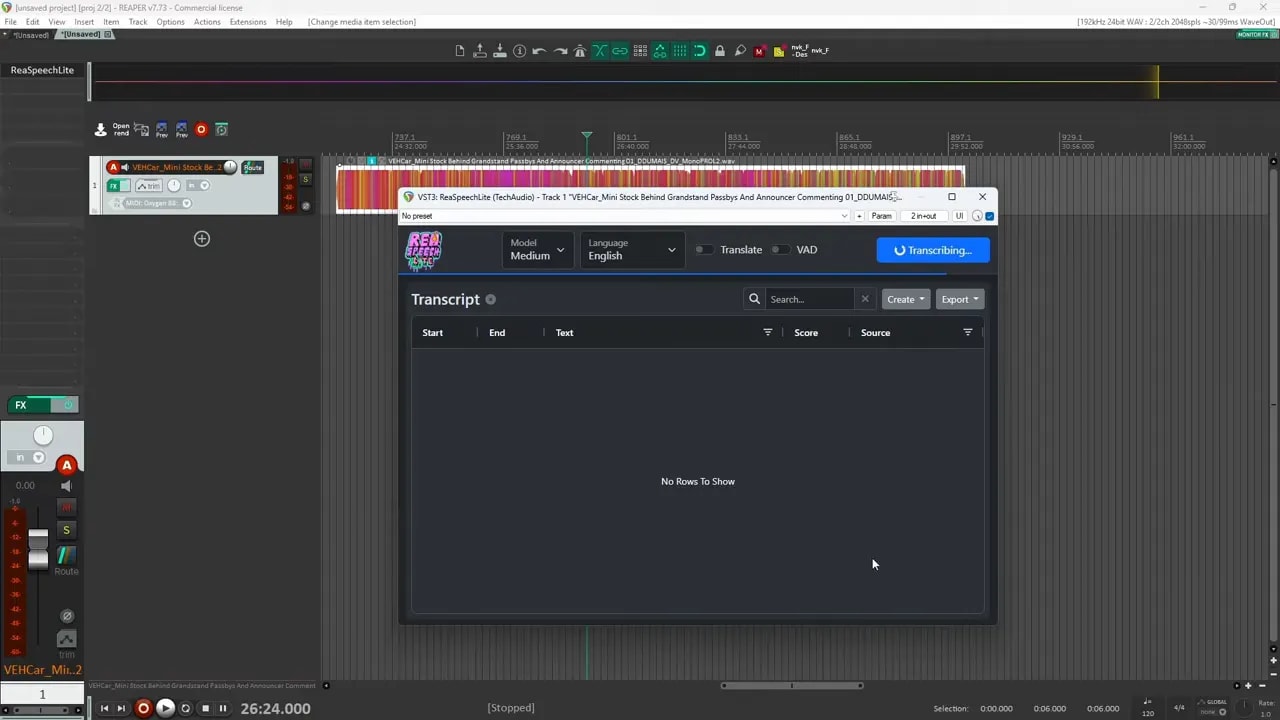
That is the key mindset here. This is not replacing proper editing. You still need to go back, listen, and make your final decisions. But it can dramatically reduce how much blind searching you need to do first.
If you are building a sound library and want a broader process for organizing and shaping recordings after the initial pass, this sound design workflow pairs nicely with that kind of cleanup stage.
Use case 2: Turning speech slates into metadata
The second use case is one I really like.
When I am recording, I will often speak useful notes into the mic. Things like:
- Where I am standing
- What part of the event I am capturing
- The perspective or angle
- What mic setup I am using
Those spoken slates are great in the moment, but later they become one more thing to manually type into metadata if I want the information to stay with the file.
ReaSpeech Lite makes that much easier.
The basic workflow
- Process the file in ReaSpeech Lite
- Find the transcribed slate section
- Export the results as CSV
- Copy the useful text
- Paste it into item notes in Reaper
- Export the file with metadata preserved
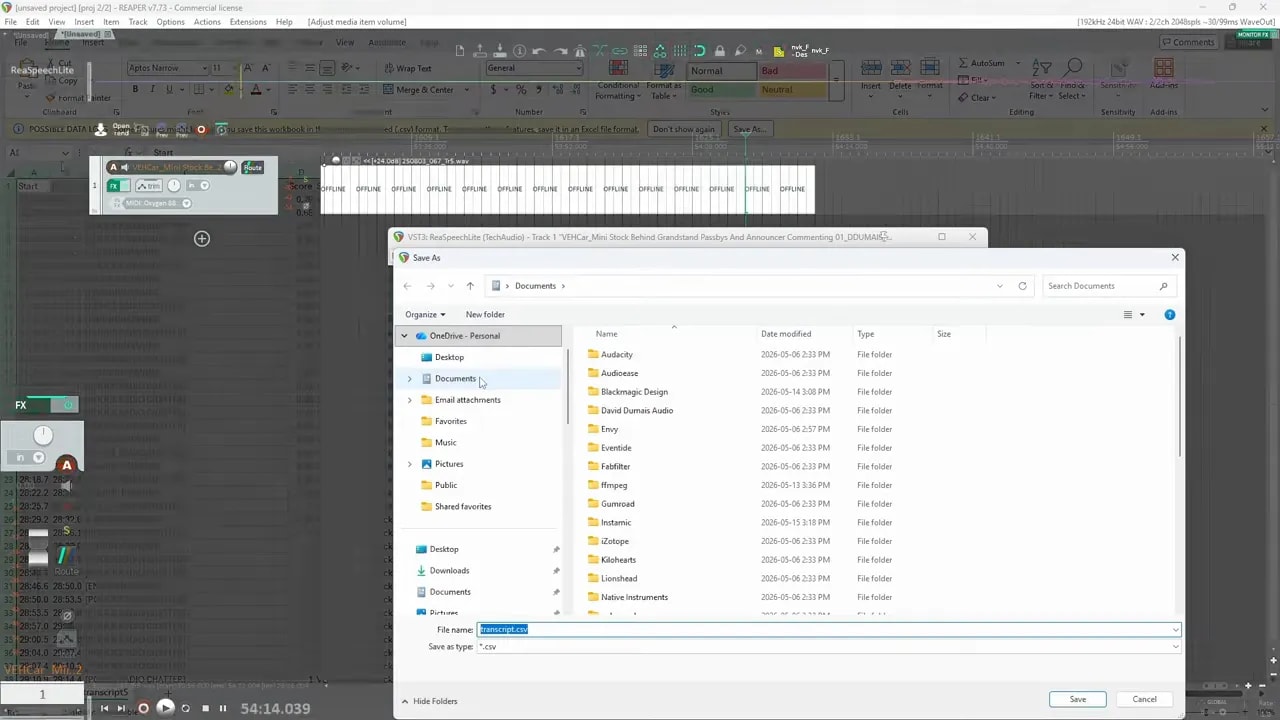
Once the text is in the item notes, Reaper can include those notes in the file comments during export. That means the spoken information you captured in the field becomes part of the actual file metadata.
So instead of typing everything from scratch, you are reusing what you already said out loud while recording.
Why this matters for sound libraries
This is especially handy when you want to keep your library searchable and useful later.
Maybe months from now you want to know:
- Where the recording was made
- What was happening during the take
- What perspective you captured
- Anything unusual about the recording setup
If those notes live inside the file comments, they are much easier to reference later.
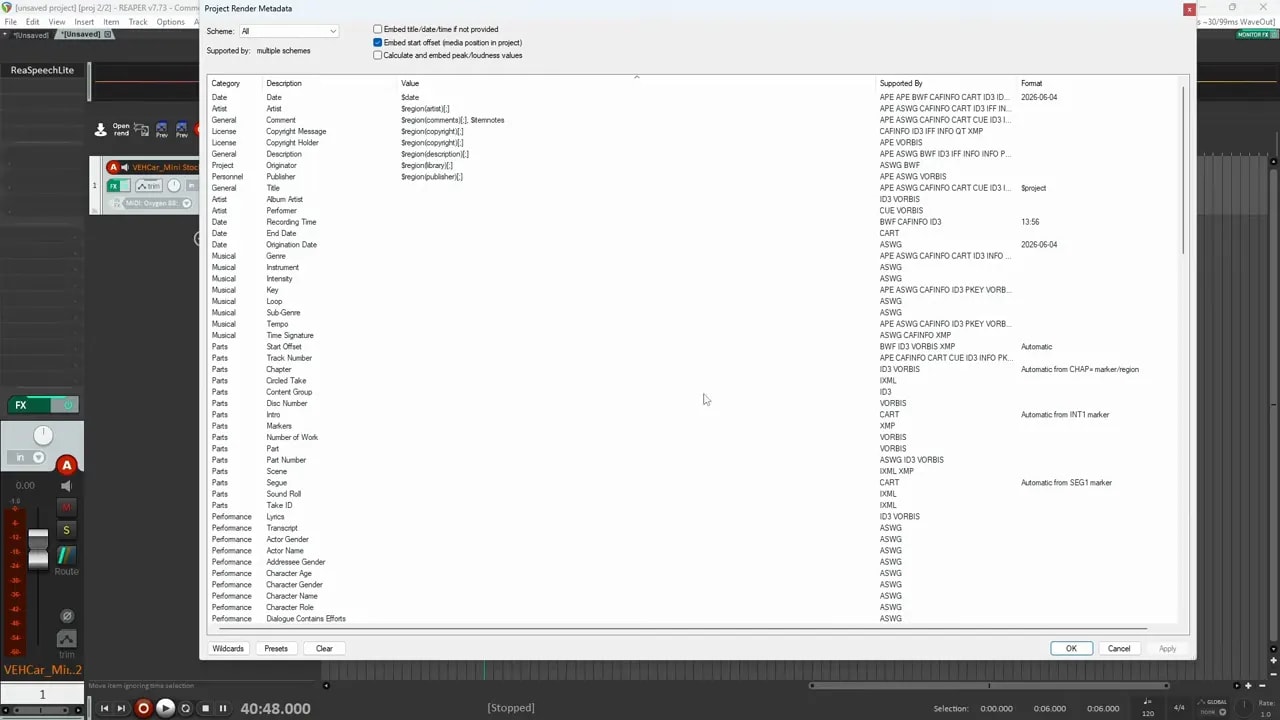
This is not about building some giant metadata system every time. It is just a quick way to keep useful context attached to the file without extra typing.
What ReaSpeech Lite does well
After working with it a bit, here are the main strengths.
- It saves time. That is the big one.
- It helps find voices quickly. Even when the text is imperfect.
- It offers different models. So you can test speed versus usefulness.
- It runs locally. That is a huge plus if you care about keeping audio on your own machine.
The local processing side is especially appealing. From my understanding, the audio is being handled on the computer rather than sent out to some external service. That is a major benefit if you are cautious about privacy or protective of your recordings.
What could be better
It is definitely useful, but it is not flawless.
- Detection is not perfect. Some speech gets missed.
- Text accuracy is inconsistent. You will see incorrect wording.
- Results vary by model and settings. Sometimes you need to reprocess.
- It can be unstable. I have had it crash Reaper more than once.
That last point is worth repeating. Reaper is usually very stable for me, but this tool has caused crashes. So if you plan to use it regularly, save your sessions often.
That one habit alone can save you a headache.
My honest takeaway
ReaSpeech Lite is not a magic fix. It will not replace careful listening, proper editing, or good library management. But for the two jobs I care about most, it has been genuinely useful:
- Finding unwanted speech in large batches of recordings
- Converting spoken slates into metadata without typing everything manually
If you deal with lots of raw audio, that can add up to a meaningful workflow improvement.
It is the kind of tool that helps with the tedious stuff so you can spend more time on the creative and technical choices that actually matter.
If you are looking for more tools, tutorials, and workflow ideas around sound design and editing, there is plenty more in the blog archive.