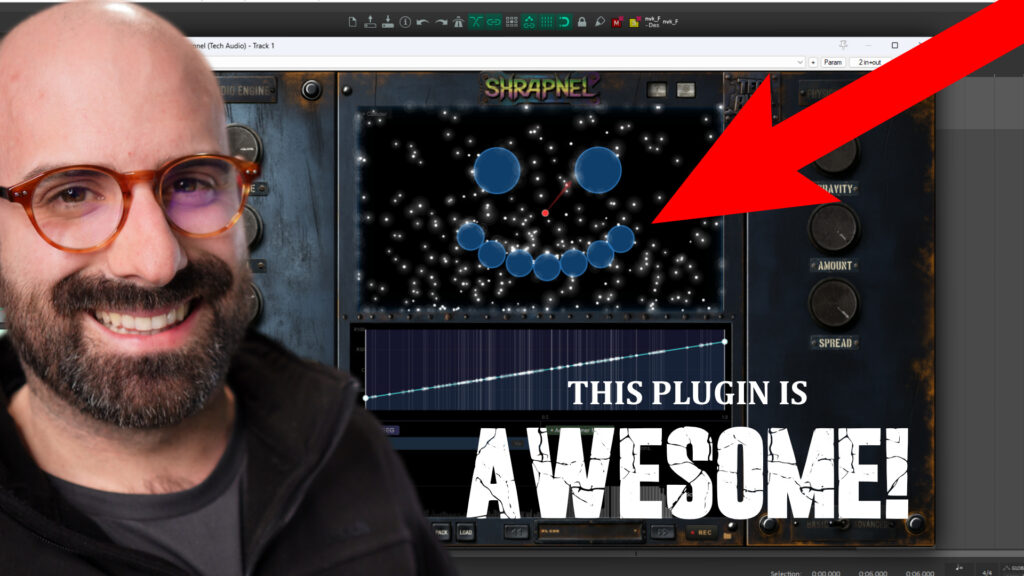
Shrapnel by TechAudio can turn a few recordings into complex, evolving sound effects. Water, sci-fi interfaces, weapon sequences, paper movement, magical textures, even musical pads can all come from the same basic idea: particles moving through a sandbox and triggering sounds.
What makes it interesting is how much control you have over that movement. You are not limited to random sample playback. You can decide which particles trigger which sounds, how hard they need to hit, where those events happen, and how the sound changes as the particles lose energy.
I’ll start with the controls, build a layered water patch, then break down several patches I’ve created. The goal is to give you enough practical detail to start designing your own sounds, not just turn knobs and hope something works.
How Shrapnel Works
Shrapnel has two main sides:
- The audio engine: Controls what plays and how it sounds.
- The physics engine: Controls the particles that trigger those sounds.
The central square is the sandbox. An emitter launches particles into it. Those particles can hit the sandbox boundaries, collide with objects you place inside it, or collide with each other.
Each of those events can trigger different sound layers. That connection between movement and sound is the foundation of a patch.
Global Audio Controls
The main volume and pitch controls affect the whole patch. These become useful once you have several layers with their own settings. Instead of adjusting every layer, you can change the overall level or pitch from the front panel.
The Variation knob controls how widely sounds vary within their configured ranges. For example, a layer might have a range of possible pitch and volume values:
- Higher variation allows more difference between events.
- Lower variation makes those events more consistent.
Basic Particle Controls
- Gravity: Pulls particles down. Negative gravity sends them upward.
- Amount: Changes how many particles are emitted at once.
- Spread: Changes how widely particles launch in different directions.
You can trigger particles with MIDI notes. Right-clicking in the sandbox positions the emitter, while right-clicking and dragging sets its launch direction and force.
You can also animate the emitter using translation, rotation, and strength controls. Moving it horizontally or vertically changes its position. Rotation changes where it points. Strength changes the force of the launch. Together, these can create something like a moving fountain of particles.
Map Parameters Across the Sandbox
The front-panel mapping area follows the sandbox from left to right. A particle’s horizontal position can determine a parameter value.
For example, a pitch map could produce lower pitches on the left and higher pitches on the right, with values around -12 and +12 at different positions. Similar mapping options are available for filters, volume, and MIDI CC.
This gives the sandbox a musical or tonal shape. Where a particle lands can matter just as much as when it lands.
Advanced Physics: Control Density, Movement, and Timing
The advanced physics panel gives you more precise control than the front-panel knobs. These settings affect the rhythm, density, and duration of your sound.
Particle Life and Particle Limits
Particle Life determines how long each particle remains active. It is measured in seconds and can extend up to a minute.
That is a long time when you are continuously spawning particles. It is easy to build up hundreds of active particles, especially with a high Amount setting.
Use the particle limit and statistics to keep this under control. For example, if the count climbs above 250, reducing the maximum to 100 can make the patch more manageable.
A particle limit is not the same as an audio voice limit. One controls the simulation’s population. The other controls how many sounds can play at once. Both matter in dense patches.
Manual Spawning and Auto Spawn
You can launch particles using:
- MIDI input with MIDI Spawn enabled.
- The Control key on your computer keyboard.
- Auto Spawn.
Auto Spawn is useful for continuous textures because you do not have to keep triggering the patch manually.
Its main controls include:
- Spawn rate: How frequently a spawn event happens.
- Spawn amount: How many particles appear per event.
- Spawn size: The size range of those particles.
You can set the amount to a fixed number or a range. A range from one to five, for example, randomly chooses a number of particles for each spawn event.
In the version I’m using, the minimum Auto Spawn rate is 1 Hz. I would like a slower option, such as 0.5 Hz, for more widely spaced events.
If the spawn amount seems much larger than expected, check the front-panel Amount control too. Resetting it can help you get back to a predictable starting point.
Particle Size Is a Sound-Selection Tool
Particle size is not just visual. Sound layers can have a size filter, so only particles within a particular range trigger them.
For example:
- Spawn particles no larger than 0.1 metres.
- Set a sound layer to accept particles from 0.11 to 0.3 metres.
- That layer will not play because none of the spawned particles qualify.
Increase the spawn-size range to include those larger particles, and the layer can begin triggering.
This is useful when you want different layers for different particle sizes within one patch.
Damping, Bounce, Velocity, and Friction
- Damping: Slows particles while they travel through the air.
- Bounce: Changes how strongly particles rebound from surfaces.
- X velocity: Controls horizontal launch movement.
- Y velocity: Controls vertical launch movement.
- Friction: Affects movement when particles contact a surface.
The front-panel Spread knob adjusts horizontal and vertical behaviour together. In the advanced panel, you can separate them.
For example, you could allow particles to launch randomly left or right while keeping the initial vertical velocity at zero. Or you could do the opposite and launch them up or down without sideways movement.
I tend to adjust friction and bounce on individual surfaces rather than rely on the global settings. That makes it easier to give each collider a specific job.
Particle Colours and Particle Collisions
Colours have a practical purpose too. You can assign sounds to particular particle colours, so one colour triggers one layer while another triggers something different.
You can also enable particle-to-particle collision. With it enabled, particles bounce off each other. With it disabled, they pass through one another.
Importantly, physical collisions and sound assignments are separate. Particles can collide without triggering a sound if you have not assigned an audio layer to that event.
Build a Layered Water Patch
I like working in the advanced audio panel because it makes the layers and their settings easier to access. The available output types include granular playback, sample groups, MIDI, and audio input.
For this patch, start with granular playback and build up the texture gradually. If you need source material for your own experiments, the free Sound Designer’s Starter Pack is one place to start.
1. Load the First Granular Layer
- Open the advanced audio properties.
- Choose a granular output layer.
- Drag a water recording into the file area.
- Trigger particles and adjust the playback settings until you have a useful base texture.
You do not need a fully worked-out idea immediately. I started by experimenting with a water-like texture and then built around what sounded interesting.
2. Fix Choppy Playback Before Adding More Layers
If granular playback starts breaking up, check the maximum voice count. Dense granular patches can hit that limit quickly.
In this example, increasing the voice limit to around 150 or 200 helped smooth out the sound.
That is not a universal setting, but it is a useful troubleshooting step. Before changing the source or rebuilding the patch, check whether you are simply running out of voices.
3. Add Another Boundary Layer
Click an empty area of the sandbox while working in the advanced properties panel. This opens the boundary properties.
These properties determine what happens when particles hit any of the sandbox’s four outer sides.
Add another granular layer. I used a recording of water pouring into a kitchen sink, then pitched it down to give the patch a lower layer.
Solo each layer while shaping it, then listen to the combination. A layer can sound good alone and still feel wrong in context.
Shape Each Audio Layer
Many controls are shared across Shrapnel’s output types. Understanding these makes it much easier to build a patch without getting lost in the settings.
Playback Position, Transients, and Envelopes
Granular layers include volume, pitch, playback position, and envelope controls such as attack and decay.
Transient detection is especially useful for impacts and explosions because it lets playback start at an identifiable attack.
It is also handy for a “sausage file”: one audio file containing multiple takes or variations. Instead of loading ten separate samples, you can load the combined file and detect the transients at the start of each take.
For a flowing water texture, freely varying the playback position may work better. For a series of distinct hits, transient-based selection can make more sense.
Velocity Scale: Make the Sound Lose Energy
Velocity Scale changes how strongly collision speed affects playback volume.
- A higher value, such as 5: Makes softer bounces noticeably quieter.
- A lower value, around 1 or less: Keeps the volume more consistent across harder and softer hits.
If you want a sound to tail off as particles lose energy, increase the scale. If you want an ongoing texture that stays fairly even, keep it lower.
The Velocity Curve gives you additional control over that response. Linear is one option, with other curve shapes available. I have not explored every curve extensively, but it is worth experimenting when the decay does not feel right.
Pan Variation and Natural Level Changes
Pan Variation spreads events across the stereo field. This is particularly useful for ambiences and textures that should move over time.
Check any other active panning or mapping options when testing it, since another setting may take priority over the variation control.
I also like giving volume a range rather than fixing every event at the same level. A quieter average level with occasional louder events can feel more natural than simply turning an entire layer down.
Random Filters and Velocity Mapping
Shrapnel provides low-pass, high-pass, and band-pass filtering, with ranges that can vary between events.
For the lower water layer, I narrowed the low-pass range so each particle still produced some variation, but the layer consistently stayed darker.
A full-range random filter can produce very different results from one event to the next. Narrowing that range gives you variation without losing the layer’s role.
You can also map filter values to collision velocity:
- Positive mapping: Harder hits choose values higher in the range.
- Negative mapping: Harder hits choose values lower in the range.
- Blended mapping: Combines the velocity relationship with randomness.
This lets a texture change tonally as the particles slow down, not just become quieter. You can use the filter types together and adjust Q to shape their character.
Use Sample Groups for Distinct Events
Granular playback is useful for continuous or fragmented textures. Sample groups give you another way to add distinct events.
For the water patch, I loaded five splash recordings into a group.
- Create a sample group and name it.
- Add the recordings.
- Select that group in the output layer’s group list.
- Set the size filter and hit threshold.
- Adjust repetition avoidance.
Do not forget to select the group after creating it. You can have several groups available, but the layer needs to reference the one you want.
Hit Threshold Controls When a Layer Plays
The hit threshold determines the minimum collision speed needed to trigger a sound.
- A low threshold, such as 0.1 m/s, allows very soft collisions to trigger it.
- A threshold of 3 m/s requires a collision at that speed or faster.
- A threshold of 5 m/s reserves the layer for stronger hits.
This is different from Velocity Scale. Velocity Scale changes how loud an event is. Hit Threshold decides whether it happens at all.
That means a patch can change its sound sources as it loses energy. Strong hits might produce splashes, while softer movement leaves only the granular water layers.
I also set the group to avoid the last two samples. This helps prevent the same recording from repeating too frequently.
The splashes did not really fit the first version of the patch, so I removed that boundary layer. That is part of the process. A feature being available does not mean the sound needs it.
The Three Collision-Based Trigger Areas
Shrapnel becomes much more flexible when you separate its three main collision contexts.
1. Boundary Properties
These trigger sounds at the outer edges of the sandbox. They are useful for a recurring base texture because particles often return to those edges.
2. Collider Properties
Colliders are objects placed inside the sandbox. Select one to edit its specific properties and assign sounds to it.
For the water patch, I assigned the splash group to a particular collider instead of the outer boundaries. That gave me more control over where and how often the splashes happened.
You can then:
- Aim the emitter toward that collider.
- Use other colliders to redirect the particles.
- Adjust bounce and friction to reduce unwanted repeat hits.
- Assign different sample banks to other colliders.
Check the relevant voice limits here too. The collider properties have a separate maximum-voices setting from the boundary properties.
3. Particle-to-Particle Collision Properties
To assign sounds to particles hitting each other:
- Open the advanced physics settings.
- Enable particle-to-particle collision.
- Click Edit beside that option.
- Add the sound layers you want.
I added a bubble recording as a granular layer, detected its transients, and brought its volume down.
Now the patch had three different behaviours:
- Granular water at the boundaries.
- Splashes at a selected collider.
- Bubbles when particles hit each other.
The result was a more complex, less predictable water texture without needing every layer to trigger at every collision.
Trigger Synths and Instruments with MIDI
Shrapnel can send MIDI events to an instrument instead of playing recordings internally. I tested this with Phase Plant, starting with a simple sine-wave patch.
Using Auto Spawn helps here because you can hear the particle-generated notes without also playing the instrument directly from your keyboard.
The MIDI output controls include:
- Monophonic mode: Restricts playback to one note at a time.
- Gate: Controls note duration.
- Velocity Scale: Relates note velocity to collision energy.
- Note and pitch range: Determines which pitches are available.
- Scale selection: Restricts notes to a chosen scale, such as major pentatonic.
You can create unusual melodies or use the same approach for tonal sound design. Bell presets, magical textures, or granular instrument patches are all interesting possibilities.
I have not used this side as much as the sample and granular outputs, but there is plenty to explore.
Process Live Audio Through the Particle System
The audio-input option works with incoming audio rather than a file loaded directly into a layer.
I used a simple stream recording in REAPER. With Shrapnel receiving that audio, the buffer captures material that the particles can trigger.
The Position Random control determines where playback draws from within the buffer, with a range from 0 milliseconds to 1 second.
- Play audio into Shrapnel so the buffer receives material.
- Choose audio input as the layer’s output type.
- Trigger particles.
- Adjust the position range and other playback controls.
You can combine that processed stream with sample groups, granular layers, and particle-collision sounds. The patch does not have to use just one source type.
Patch Ideas: From Evolving Ambiences to Weapon Sequences
The same controls can produce very different results depending on your sources and sandbox layout. These examples show how I used them for different kinds of sound design.
Heavy, Evolving Elemental Texture
For one complex patch, I placed several colliders of different sizes throughout the sandbox. Each triggered different material:
- Magic effects from my Magic Sound Pack 2.
- Granular earthquake sounds.
- Fire and crackling.
- Thunder.
- Air.
- Fire whooshes.
The boundaries supplied heavy water and bubbling sounds. Pitching much of the material down made the overall texture feel larger and heavier.
Small colliders were important. Because particles hit them less often, their sounds became occasional details rather than constant layers.
I also varied volume, attack, and decay. That way, even a repeated source did not arrive with exactly the same shape every time.
Sci-Fi UI: Use Colours to Separate Sound Families
For a sci-fi UI patch, I used four particle colours: white, blue, green, and purple.
Each colour triggered a different boundary layer. Some were clickier, while others were more warbly or tonal.
I also assigned interior colliders to specific particle colours and sound banks. Colouring the objects to match made the assignments easier to follow visually.
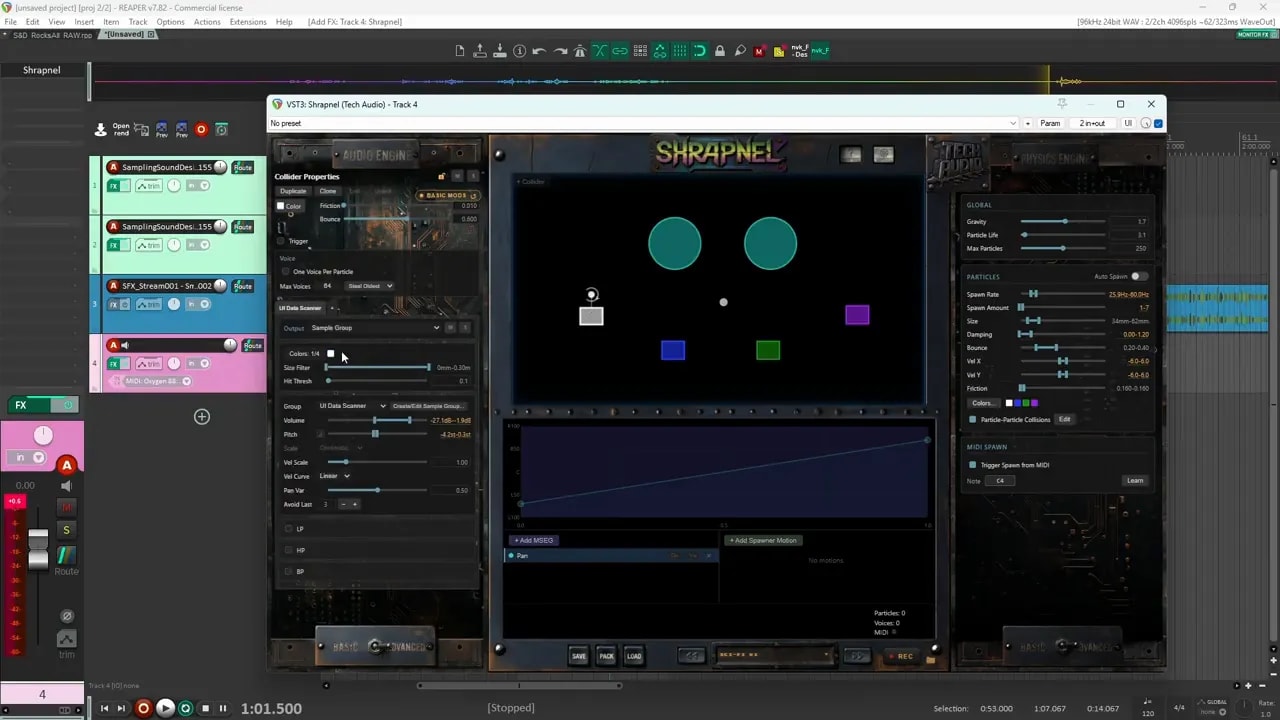
Position affected how often each sound appeared. Colliders farther from the emitter were hit less frequently, while those closer to the centre were more active.
Particle collisions were enabled physically, but I did not assign sounds to them in this patch. The boundary and collider layers already provided the variation I wanted.
Sci-Fi Weapon: Build a Sequence Along a Particle’s Path
A weapon patch can use particle movement to create a sequence rather than an ongoing ambience.
The useful feature here is Trigger Damping. It allows particles to pass through a collider while changing their speed. The collider can also trigger audio during that passage.
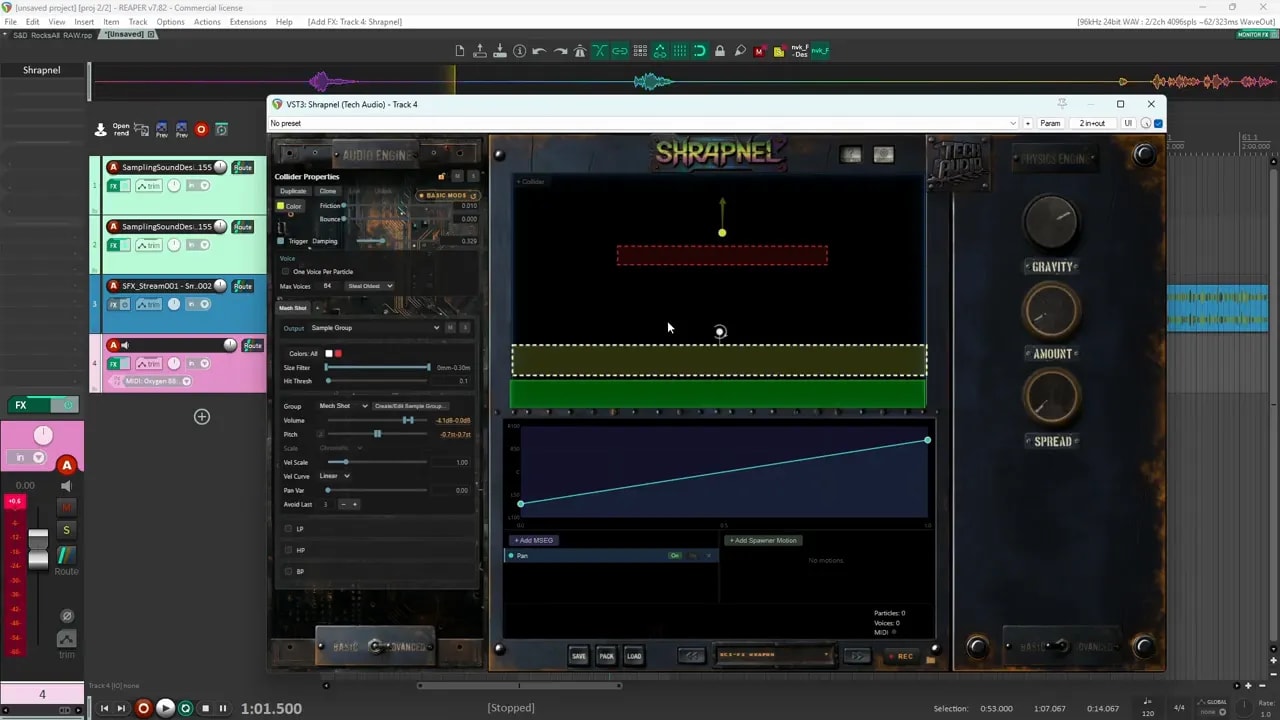
I arranged the sequence like this:
- Top boundary: Triggers a weapon-tech or lock sound, like a loading mechanism.
- First damping region: Slows the particle without triggering audio, creating space before the shot.
- Shot region: Triggers the weapon shot and slows the particle again.
- Final collider: Triggers the explosion tail and prevents the particle from bouncing back through earlier stages.
White and red particles selected different loading sounds at the top, but both colours triggered the shot. That gave me variation in the mechanism while keeping the main firing event consistent.
For the final collider, I brought bounce and friction down in this setup so the particle would settle rather than retrigger the sounds above it.
Pinball Arcade: Make Collider Placement Part of the Design
The pinball patch is more involved because the sandbox itself behaves like a little arcade layout.
- Blue outer colliders: Contain the particles and funnel them toward the bottom.
- Large triangular colliders: Represent the flippers and trigger mechanical sounds.
- Central circular collider: Triggers a coin sound that can repeat without becoming too distracting.
- Other targets: Trigger retro damage, item pickups, quest acceptance, points counters, power-ups, and miscellaneous game sounds.
- A tiny bonus target: Produces a special sound only when a particle happens to hit it.
- Two lower colliders: Add small pop sounds to finish the sequence.
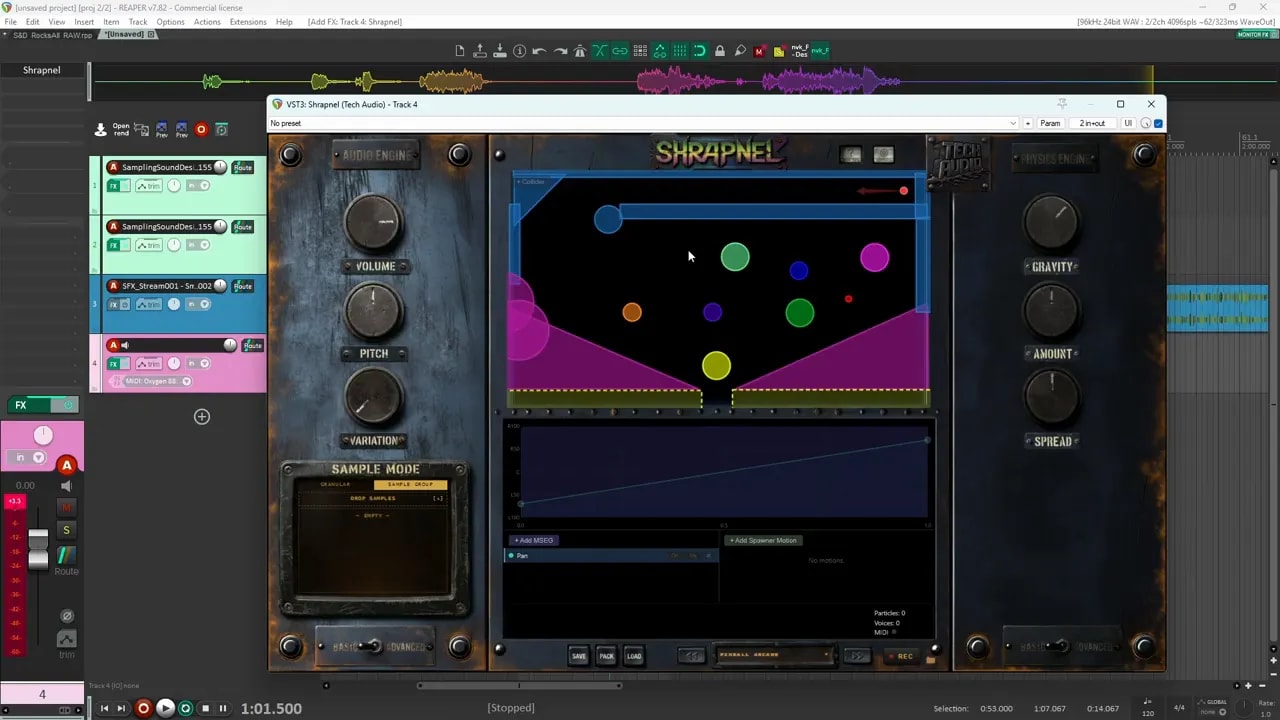
Several interior surfaces use high bounce values to keep the particles active. Sample groups provide variation at the targets, while the small bonus collider makes one event genuinely rare.
This is a useful way to think about the layout: collider size and placement help determine the probability of a sound.
Flapping Paper: Separate the Initial Burst from the Fall
For the paper patch, I used the same group of recordings in two places:
- At normal pitch for boundary collisions.
- At a higher pitch for particle-to-particle collisions.
Many particles hit each other near the beginning, creating a brighter, more transient-heavy burst. After that, the boundary events suggest the paper falling.
Adjusting the velocity response helped the sound decrease over time, giving it a clearer beginning and tail.
Metal Earthquake: Pitch Everyday Recordings Down
The metal earthquake patch used a mixture of recordings:
- Shaking and vibrating metal.
- Shipping-container door screeches.
- Gardening-shovel drops and scrapes.
- Shaking cans.
I pitched the sources down heavily to create a rumbling, shaking texture. The variety of metal recordings supplied different movements and details, while the lower pitch tied them together.
Magical Bells and Chimes
For a lighter magical texture, I combined bell groups, chimes, and air.
The bell group contained 20 sounds, with random selection and ranges for pitch and volume. I pitched the material upward and used high-pass filtering to make it cleaner.
An interior collider contributed air as particles passed through it. Chime layers added another character, with ranges for attack, decay, pitch, and volume.
A band-pass filter changed the chimes further. It was not just about adding more bells, but making each layer occupy a different place in the texture.
Musical and Tonal Pads
Shrapnel can also create something much more musical.
I started with several short pad recordings designed in E-flat. Using related source material gave the patch a coherent starting point as it shifted between different sections of the recordings.
Some pad layers also triggered from particle collisions. Selecting different segments of the pads created a pulsing, changing texture.
I then adjusted layer pitches by ear to build a chord-like result. The example included values such as +9, -10, +7, and +5. Those values were choices for those particular sources, not a universal tuning recipe.
Finally, I added:
- A band-pass filter to reduce a boxy quality in the pads.
- Chimes for a more magical finish.
The important point is that particle sound design does not have to be noisy or chaotic. It can be tonal, gentle, and pleasing too.
Workflow Tips That Make Shrapnel Easier to Use
Solo an Entire Property Group
You can solo individual layers while editing, but you can also solo the whole property group.
If a boundary setup contains several layers, use its overall Solo control to hear them together instead of enabling Solo on each layer separately.
Link, Clone, and Duplicate Colliders
These options save time when building larger layouts:
- Link: Select multiple colliders with Shift and link them to share the associated setup.
- Clone: Creates a linked copy.
- Duplicate: Creates an unlinked copy.
Linked colliders display a connecting line. You can unlink a clone if you want to edit it independently, or delete an unwanted collider with Backspace.
Use Colour Weights to Change Event Frequency
Each particle colour has a weight. Increasing one colour’s weight makes it appear more often.
If yellow particles trigger a particular sound family, increasing the yellow weight gives that family more opportunities to play.
This adds another level of control alongside collider size, collider position, size filters, and hit thresholds.
Control Overlapping Voices
One Voice Per Particle restricts a particle to one active sound at a time. This can help when a particle’s repeated triggers build up more overlapping audio than you want.
Voice-stealing options include oldest, newest, and slowest. I do not adjust these often, but they are worth testing when a dense patch starts behaving or sounding strangely.
Save, Pack, and Record
Shrapnel also includes options to:
- Save presets.
- Pack presets for transfer between computers.
- Load presets from files outside the preset list.
- Record the master output directly to disk.
- Open the recordings folder.
I do not normally use the direct-to-disk recording feature, but it is available if it suits your workflow.
Start Simple, Then Give Each Layer a Purpose
The most useful approach I’ve found is to build one behaviour at a time:
- Choose a source and make one layer work.
- Set the particle movement and density.
- Decide where additional sounds should trigger.
- Use size, colour, and velocity to separate their roles.
- Add variation where it makes the result more interesting.
- Remove anything that does not fit.
That layer-by-layer approach also fits the broader principles in my four-step sound design workflow.
Shrapnel has a lot of settings, but you do not need to use all of them in every patch. A few well-chosen recordings and a purposeful sandbox layout can already take you a long way. Start with a simple texture or sequence, then use the particle system to give it movement, variation, and detail.